File and Folder Dialogs
Sometimes your app needs to interact with the outside world—like opening a saved game, exporting a high score to a text file, or choosing a folder for your photos. In GooeyPie, we use File Windows for this.
These are “Native Dialogs”, meaning they will look exactly like the standard “Open” or “Save” windows you and your users are already used to on Windows, macOS, or Linux.
Creating a Dialog
Section titled “Creating a Dialog”Unlike standard widgets or popups, these dialogs are created directly from the gooeypie library itself, not your app object. They stay invisible in the background until you are ready to show them.
| Window Type | Purpose |
|---|---|
OpenFileWindow | Picking an existing file to open |
SaveFileWindow | Choosing where to save a new file |
OpenFolderWindow | Selecting an entire folder/directory |
OpenFileWindow
Section titled “OpenFileWindow”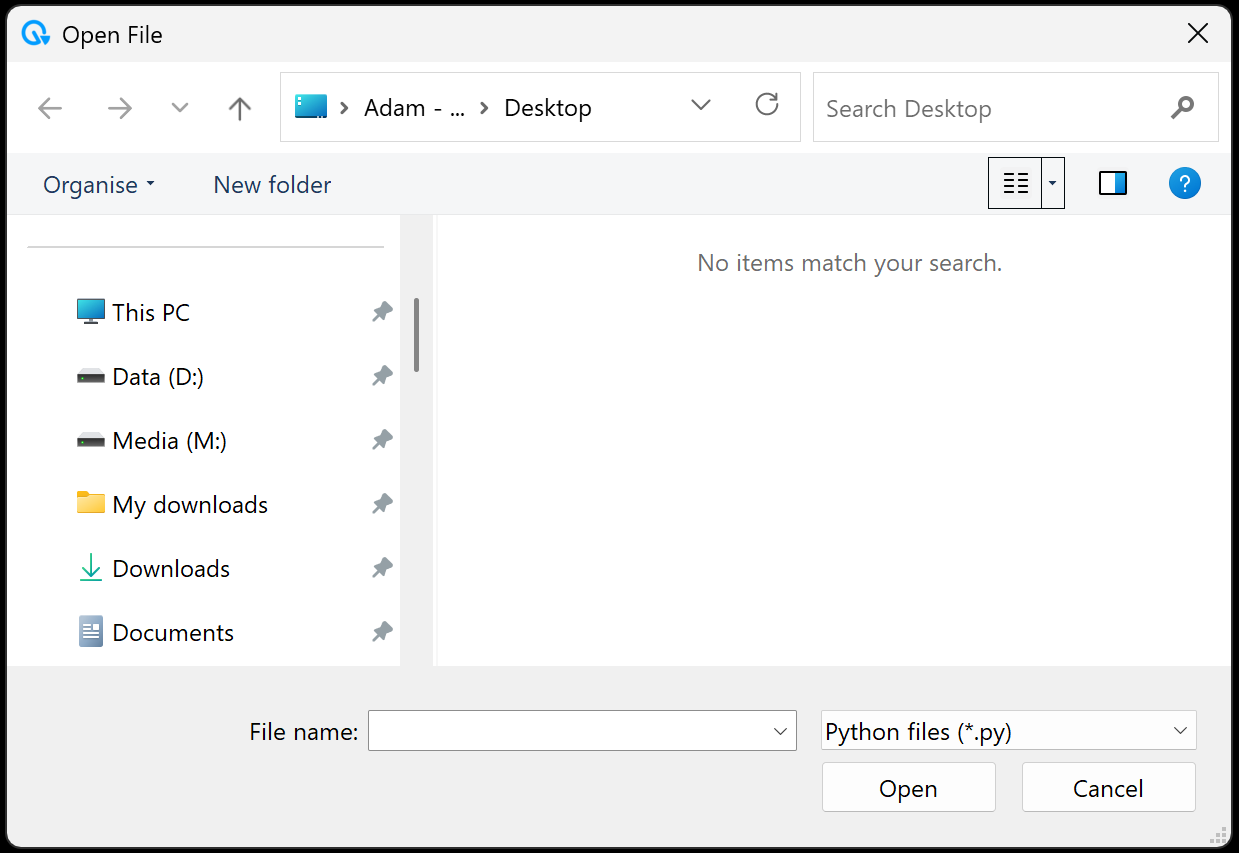
open_file_window = gp.OpenFileWindow("Open File")open_file_window.add_file_type("Python files", "*.py")open_file_window.set_initial_folder('desktop')open_file_window.open()SaveFileWindow
Section titled “SaveFileWindow”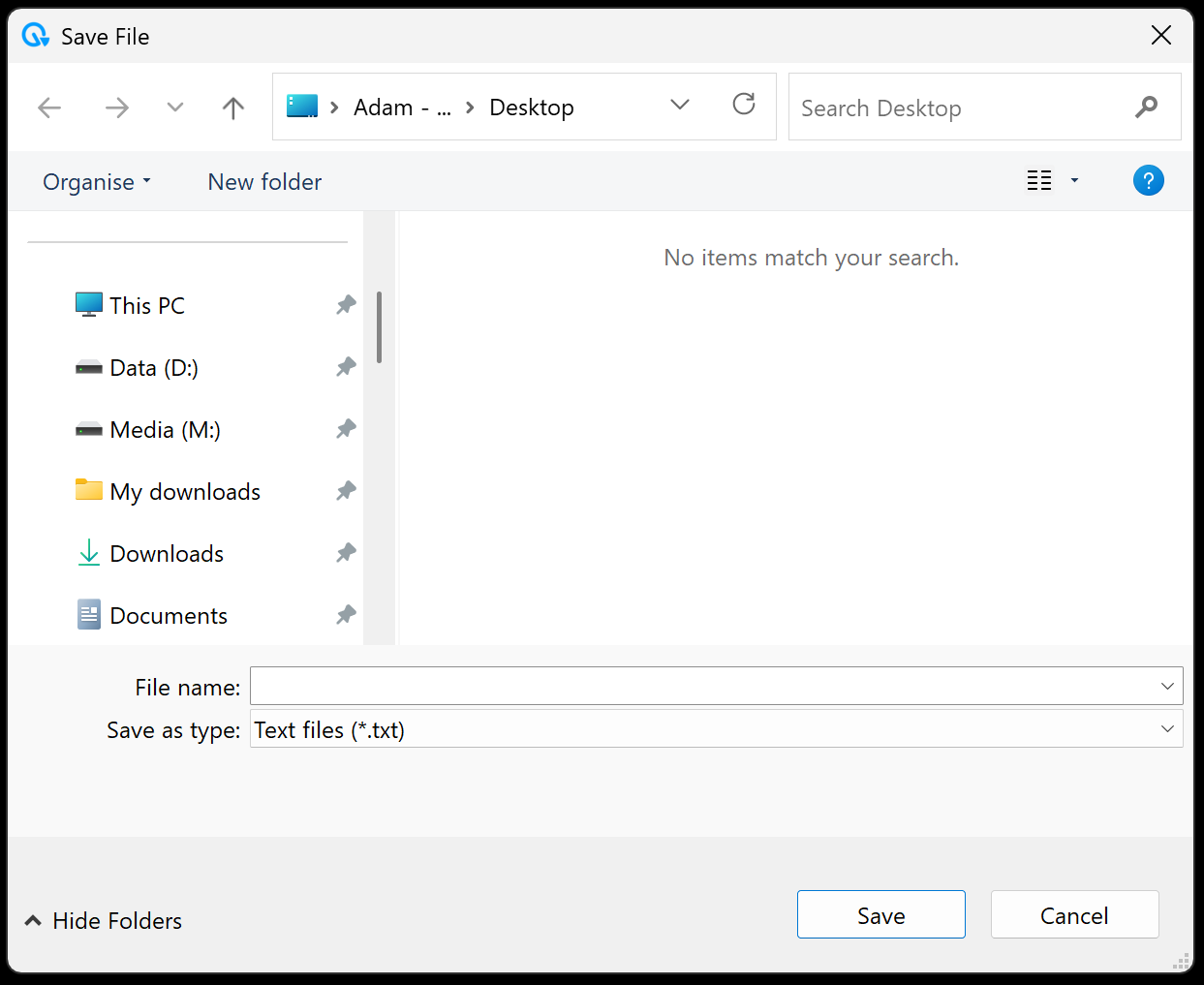
save_file_window = gp.SaveFileWindow("Save File")save_file_window.add_file_type("Text files", "*.txt")save_file_window.set_initial_folder('desktop')save_file_window.open()OpenFolderWindow
Section titled “OpenFolderWindow”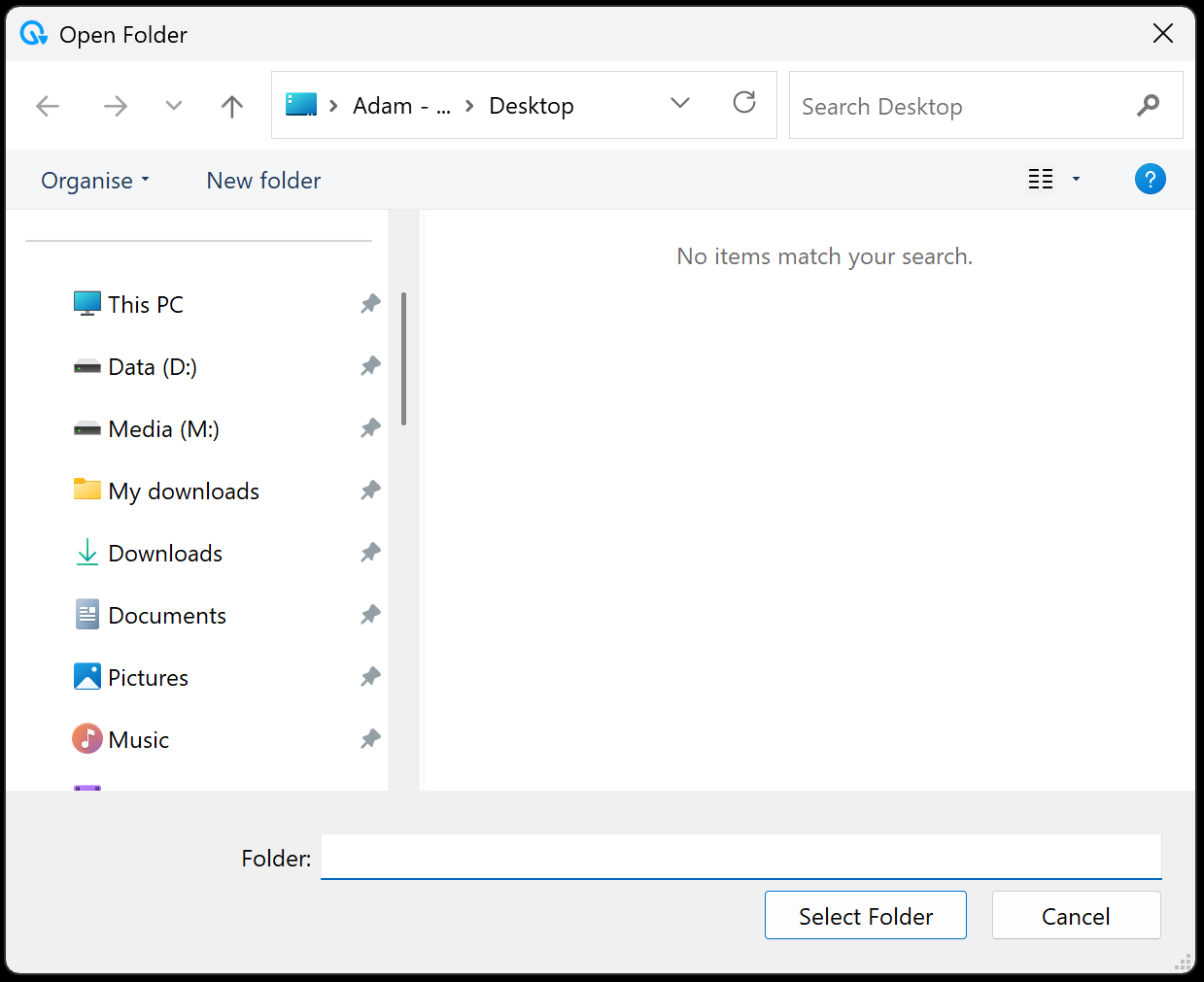
open_folder_window = gp.OpenFolderWindow("Open Folder")open_folder_window.set_initial_folder('desktop')open_folder_window.open()Opening and Getting Results
Section titled “Opening and Getting Results”To actually show the window to the user, you must call the .open() method. This stops your app and waits until the user either picks something or hits “Cancel”.
- Standard Result: Returns a string containing the full path to the file or folder.
- Cancel Result: Returns
Noneif the user closes the window or clicks “Cancel” without picking anything. Always check for this! - Multiple Files: If you set
.allow_multiple = Trueon anOpenFileWindow, it returns a tuple of strings instead of just one!
Setting the Starting Location
Section titled “Setting the Starting Location”You can control which folder the window shows first so your users don’t have to go searching through their entire computer.
The Quick Way (set_initial_folder)
Section titled “The Quick Way (set_initial_folder)”Use .set_initial_folder(location) to pick a common starting spot.
'home': The user’s home directory.'documents': The Documents folder.'desktop': The Desktop.'app': The folder where your Python script is currently running.
You can also pass extra folders to go deeper! For example, .set_initial_folder('documents', 'MyGames', 'Saves') will open right to your custom save folder.
The Specific Way (initial_path)
Section titled “The Specific Way (initial_path)”If you have a very specific exact path in mind, use the .initial_path property to set it manually (e.g., open_win.initial_path = 'C:/Images/').
Filtering File Types
Section titled “Filtering File Types”For OpenFileWindow and SaveFileWindow, you can limit which files are visible so the user doesn’t accidentally try to “open” a music file in your text editor app!
.add_file_type(description, extension): Adds a filter to the window’s dropdown.- Example:
open_win.add_file_type('Images', '*.png *.jpg')
- Example:
.remove_file_type(description, extension): Removes a previously added filter.
If you don’t add any file types, GooeyPie defaults to showing "All files (*.*)".
Quick Summary of Properties
Section titled “Quick Summary of Properties”| Property | Works on… | What it does |
|---|---|---|
.initial_path | All Dialogs | Gets or sets the exact folder path the window starts at. |
.allow_multiple | OpenFileWindow | Set to True to let users select more than one file at once. |