Container Widgets
In GooeyPie, you aren’t limited to a single grid on your main window. You can use Container Widgets to group other widgets together and create more organized, sophisticated layouts.
The Power of Nested Grids
Section titled “The Power of Nested Grids”The most important concept to understand is that each container has its own grid. You use the container’s add() method to place widgets inside it, and then you use app.add() to place the container itself onto the main window’s grid.
This means you can have a grid inside a grid, and even a grid inside a grid inside a grid! This allows you to create complex layouts by nesting containers within each other.
Types of Container Widgets
Section titled “Types of Container Widgets”my_frame = gp.Frame()A Frame is a container used for visually grouping widgets together. Use a Frame when you want to show the user that a set of inputs or labels belong to the same category, like “User Settings” or “Game Stats”.
Example: Simple Quiz
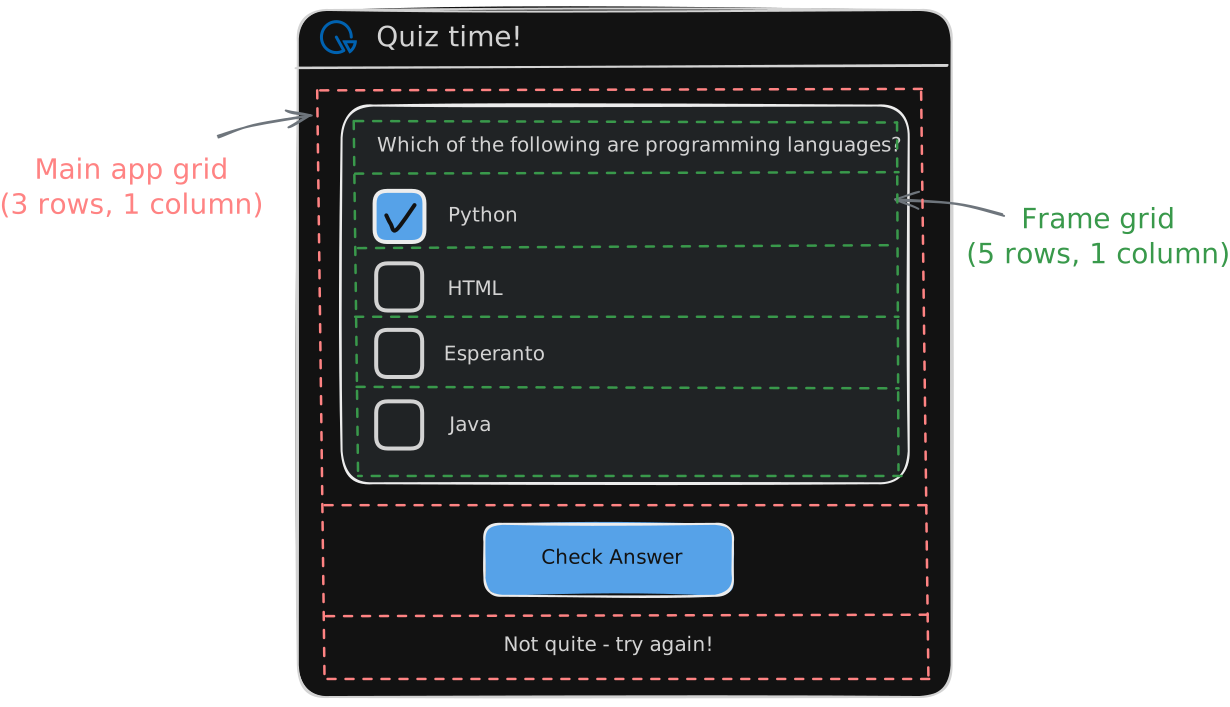
Section titled “Example: Simple Quiz”In this example, we use a Frame to group together the question and the answer checkboxes for a simple quiz question. Notice that the Frame has its own grid, and we use question_frame.add() to place the question label and checkboxes inside it, but later we use app.add() to place the Frame itself onto the main window.
import gooeypie as gp
def check_answer(event):    """Checks the answers and gives feedback in a popup."""    if python_chk.checked and java_chk.checked and not html_chk.checked and not esperanto_chk.checked:        feedback_lbl.text = 'You got it!'    else:        feedback_lbl.text = 'Not quite - try again!'

app = gp.GooeyPieApp("Quiz time!")
# Create question label and checkboxes for answersquestion_label = gp.Label("Which of the following are programming languages?")python_chk = gp.Checkbox("Python")html_chk = gp.Checkbox("HTML")esperanto_chk = gp.Checkbox("Esperanto")java_chk = gp.Checkbox("Java")
# Create question frame and add question and answer checkboxesquestion_frame = gp.Frame()question_frame.add(question_label, 1, 1, align_horizontal="left")question_frame.add(python_chk, 1, 2, align_horizontal="left")question_frame.add(html_chk, 1, 3, align_horizontal="left")question_frame.add(esperanto_chk, 1, 4, align_horizontal="left")question_frame.add(java_chk, 1, 5, align_horizontal="left")
# Create button and feedback labelcheck_answer_btn = gp.Button("Check Answer", check_answer)feedback_lbl = gp.Label("")
# Add frame and widgets to the appapp.add(question_frame, 1, 1)app.add(check_answer_btn, 1, 2)app.add(feedback_lbl, 1, 3)
app.run()
The image below shows the grid of the main window and the frame’s grid, with the widgets placed in their respective cells. The Frame itself is placed in column 1, row 1 of the main window’s grid.
Scrollable Frame
Section titled “Scrollable Frame”my_scrollable_frame = gp.ScrollableFrame()A ScrollableFrame is just like a standard Frame, but it includes a scrollbar. This is perfect for when you have a long list of widgets that won’t fit vertically on the screen at once.
Container
Section titled “Container”my_container = gp.Container()A Container is essentially an invisible frame. It doesn’t have any visual styling or scrolling behavior. Use a Container when you just want to group widgets together for layout purposes, without needing to visually separate them from the rest of the interface.
Container Properties
Section titled “Container Properties”| Name | Type | Description |
|---|---|---|
.width | int | The width of the container in pixels. |
.height | int | The height of the container in pixels. |
.disabled | bool | Disables or enables the entire container. When True, all widgets inside this container are automatically disabled. |
Container Styling Options
Section titled “Container Styling Options”| Name | Description | Default |
|---|---|---|
.style.bg_color | The background color of the container. | "transparent" |
.style.border_width | The width of the container’s border in pixels. | 0 |
.style.border_color | The color of the container’s border. | "transparent" |
As with regular widgets, use a combination of column and row spanning, alignment and expansion to control how widgets are arranged inside your containers.
To make Container Widgets expand to fill the space of their cells, use a combination of column and row weights on the container’s grid, and set the container to expand horizontally and/or vertically.