Your First GooeyPie App
Let’s get started with your first GooeyPie app! We’ll create a simple application that asks for your name and greets you.
When you first started learning Python, you might have used input() and print() to write something like this:
name = input("What is your name? ")
if name:    print(f"Hello, {name}!")else:    print("Hello, friend!")
And if you were to run that code, it would look something like this:
Click inside the terminal to start typing!
To turn this into a GUI (Graphical User Interface) app using GooeyPie, we need to swap out those text commands for GooeyPie widgets, add them to a window, and set up some event handling to make it interactive.
Before continuing, make sure you’ve installed the GooeyPie library.
Designing the interface
Section titled “Designing the interface”Let’s consider the interface of our app. We want a window with the following 4 widgets:
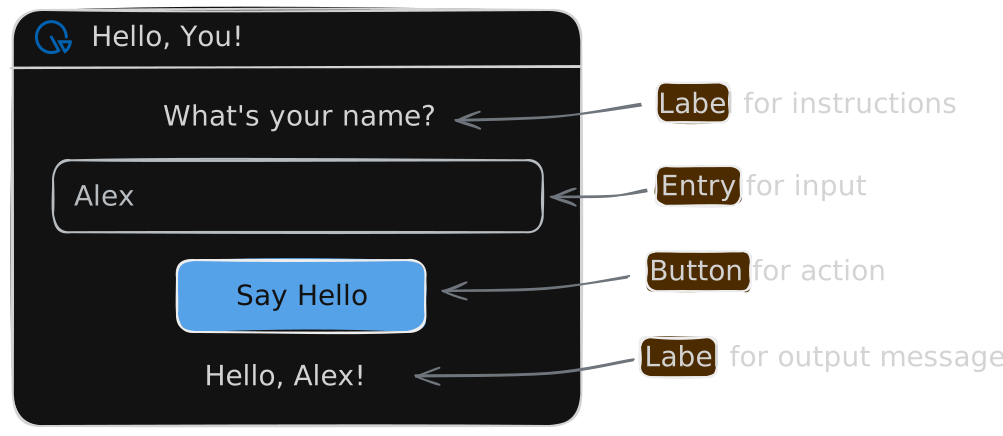
The main window
Section titled “The main window”The window is the main container for our app. It holds all the widgets and provides the structure for our interface. After importing the GooeyPie library, we create a window using main app object. Calling app.run() starts the application and opens the window.
import gooeypie as gp
app = gp.GooeyPieApp("Hello, You!")
app.run()
We could actually run this code right now, and it would create a window for us, but it would be empty and not do anything. So let’s add some widgets to it!
Creating the widgets
Section titled “Creating the widgets”We need to first create the 4 widgets in our design.
import gooeypie as gp
app = gp.GooeyPieApp("Hello, You!")
# Create widgetsquestion_lbl = gp.Label("What's your name?")name_entry = gp.Entry()say_hello_btn = gp.Button("Say Hello", None)greeting_lbl = gp.Label()
# Make the label widget widername_entry.width = 200
app.run()- We create 2 labels,
question_lblandgreeting_lbl. The greeting label starts off empty: this is where we’ll add our greeting! - A button should always do something, so when we create one we need to tell it what function to run when it’s clicked. For now though, we just use
Nonefor that second argument. - We also change the size of the entry (there are some long names out there!) using the
widthproperty. Properties are used extensively in GooeyPie to both get and set values associated with widgets and other objects.
Now if you run this code (and you should!), you’ll notice that we still have a boring empty window, and that’s because while we’ve created our widgets, we haven’t yet added them to the window. So let’s do that!
Adding widgets to the window
Section titled “Adding widgets to the window”Widgets are always added to Windows and other containers in a grid. We have to specify the column and row for each widget. Let’s do that now:
import gooeypie as gp
app = gp.GooeyPieApp("Hello, You!")
# Create widgetsquestion_lbl = gp.Label("What's your name?")name_entry = gp.Entry()say_hello_btn = gp.Button("Say Hello", None)greeting_lbl = gp.Label()
# Make the label widget widername_entry.width = 200
# Add widgets to the windowapp.add(question_lbl, 1, 1)app.add(name_entry, 1, 2)app.add(say_hello_btn, 1, 3)app.add(greeting_lbl, 1, 4)
app.run()
Since all our widgets are in a single column, the first position argument in add() above is 1.
Event handling
Section titled “Event handling”Now we need to write the code that runs when we click the button. Add the function below and replace the None that we specified when we created the button with the name of the function.
Whenever the user clicks the button, the update_greeting() function will be called.
import gooeypie as gp
def update_greeting(event):    """Updates the greeting message based on the user's name."""    if name_entry.text:        greeting_lbl.text = f"Hello, {name_entry.text}!"    else:        greeting_lbl.text = "Hello, friend!"

app = gp.GooeyPieApp("Hello, You!")
# Create widgetsquestion_lbl = gp.Label("What's your name?")name_entry = gp.Entry()say_hello_btn = gp.Button("Say Hello", update_greeting)greeting_lbl = gp.Label()
# Make the label widget widername_entry.width = 200
# Add widgets to the windowapp.add(question_lbl, 1, 1)app.add(name_entry, 1, 2)app.add(say_hello_btn, 1, 3)app.add(greeting_lbl, 1, 4)
app.run()
A couple of important things to note about events in GooeyPie:
- An event function will always be sent an
eventobject, so our function must accept this argument. - When creating the button, just write the name of the function (don’t include the brackets that you would normally use to call it!)
And you’re done! If all goes well, you should have created your first, fully functional GooeyPie app!
What next?
Section titled “What next?”Read about the core concepts to learn more about the “philosophy” of GooeyPie.
Then, check out all of the widgets you can use in GooeyPie, learn the ins and outs of layout, and see how we can add more interactivity to our apps with events.