The Event Object
Whenever an event is triggered, GooeyPie calls the associated event function and passes it an event object as an argument. This object contains information about the event that occurred, such as which widget triggered the event, the type of event, and any relevant data (like mouse coordinates for a click event).
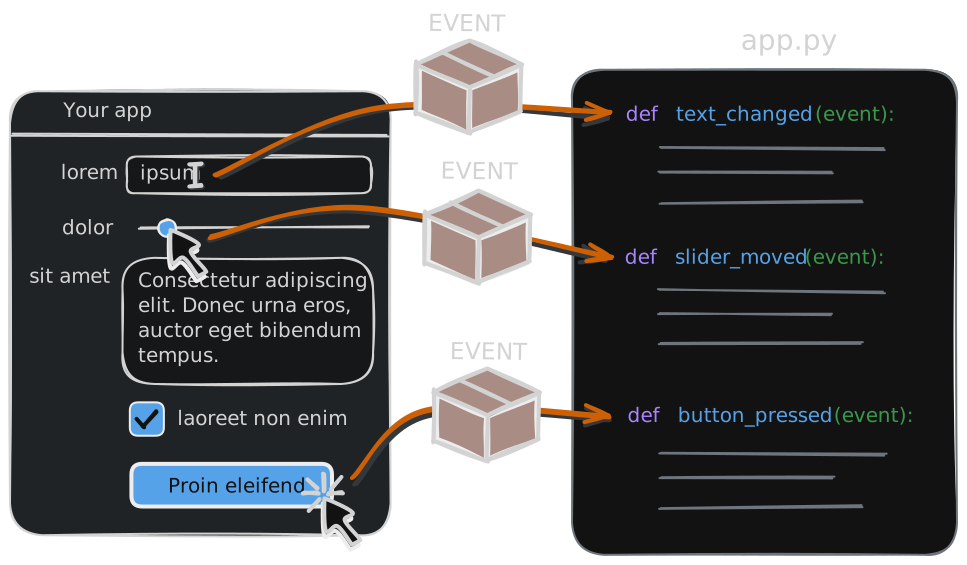
The event object has the following properties that you can access in your event function to get more information about the event:
| Property | Type | Description |
|---|---|---|
.widget | Widget object | The widget that triggered the event. This allows you to access the properties of the widget that was interacted with. |
.name | String | A string describing the type of event that occurred (e.g., "click", "change", "key_press"). |
.key | String | For keyboard events, this property contains the key that was pressed. |
.x | Integer | For mouse events, this property contains the x-coordinate of the mouse cursor at the time of the event relative to the widget. |
.y | Integer | For mouse events, this property contains the y-coordinate of the mouse cursor at the time of the event relative to the widget. |
Using the event object
Section titled “Using the event object”In this example, we have two buttons that both update the value of a label. Instead of writing two separate event functions, we can use the event object to determine which button was clicked and update the label accordingly.
import gooeypie as gp
def update_greeting(event):    """Updates the greeting message based on the user's name."""
    # Determine whether the hello or goodbye button was pressed    if event.widget == say_hello_btn:        greeting = "Hello"    else:        greeting = "Goodbye"
    # Get the name or use "friend" if the entry is empty    if name_entry.text:        name = name_entry.text    else:        name = "friend"
    # Update the greeting label    greeting_lbl.text = f"{greeting}, {name}!"

app = gp.GooeyPieApp("Hello, You!")
# Create widgetsquestion_lbl = gp.Label("What's your name?")name_entry = gp.Entry()say_hello_btn = gp.Button("Say Hello", update_greeting)say_goodbye_btn = gp.Button("Say Goodbye", update_greeting)greeting_lbl = gp.Label()
# Make the label widget widername_entry.width = 200
# Add widgets to the windowapp.add(question_lbl, 1, 1)app.add(name_entry, 1, 2)app.add(say_hello_btn, 1, 3)app.add(say_goodbye_btn, 1, 4)app.add(greeting_lbl, 1, 5)
app.run()