Core Concepts
In a standard Python script, code runs in a straight line from top to bottom. It asks a question, waits for an answer, and exits as soon as it reaches the last line.
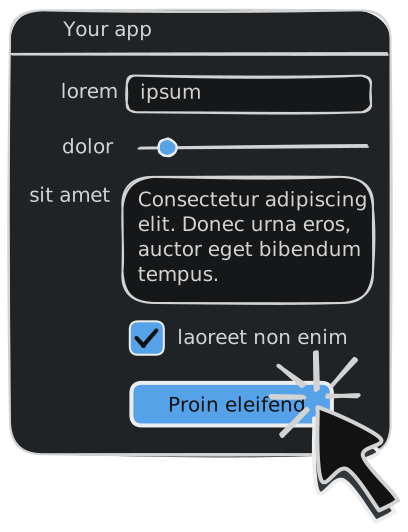
Creating a GooeyPie app changes this flow. Instead of a linear script, your program becomes a persistent window - an interactive environment that stays open, listening and waiting for the user to trigger an action.
Whether you are a student or an experienced developer, understanding these four fundamental concepts will help you transition from terminal scripts to graphical apps.
Widgets as Building Blocks
Section titled “Widgets as Building Blocks”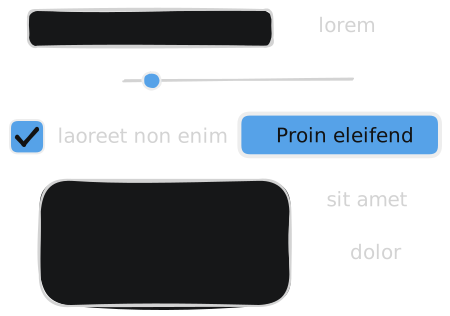
Everything you see in a GooeyPie app is a Widget. Instead of using print() to show information or input() to get it, you use:
- Labels to display text.
- Entries to for single line typing or Textboxes for longer text.
- Dropdowns, RadioGroups, Listboxes and more for making choices and selections.
- Buttons for actions.
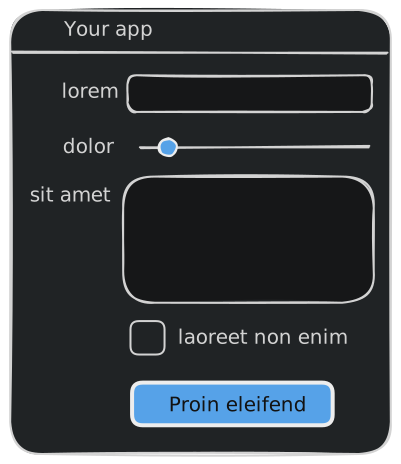
You create these objects first, then use app.add(widget, column, row) to place them on to the window:
The Grid Layout
Section titled “The Grid Layout”In a GooeyPie window, the interface is organized as a grid system. Every widget is placed at a specific column and row (or (x, y) if you’re feeling mathematically inclined!)
- Columns go across (1, 2, 3, …)
- Rows go down (1, 2, 3, …)
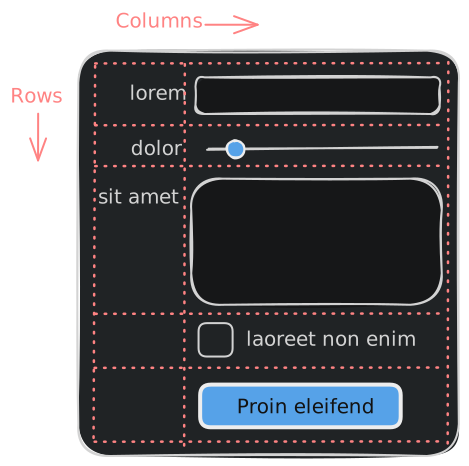
You can even make widgets “stretch” across multiple columns or rows using column_span and row_span when adding widgets, and you can control their alignment and whether or not they expand to fill the space available.
Properties vs Methods
Section titled “Properties vs Methods”Information associated with a widget - like the text in an Entry, or the selected item in a RadioGroup - sometimes needs to be accessed, and other times needs to be modified. GooeyPie simplifies this by using properties.
Think of a property like a variable that belongs to a widget. You don’t need a fancy function to change what a label says - you just treat its .text property like a normal variable.
| Action | The “Standard” Way (methods) | The GooeyPie Way (properties) |
|---|---|---|
| Get Text | val = entry.get_text() | val = entry.text |
| Set Text | label.set_text("Hi") | label.text = "Hi" |
GooeyPie widgets still have methods for more complex actions, but for the most common tasks, properties make your code cleaner and easier to read. You can get and set values directly without needing to remember specific method names or syntax.
Event-Driven Programming
Section titled “Event-Driven Programming”If you’re a beginner, this is an important shift in understanding how a program runs. In a standard Python script, the program finishes once it reaches the last line. In GooeyPie, the program enters an Event Loop.
To set up events in GooeyPie, the process looks like this:
- Register the Event: You tell a widget which function to run when something happens using an
.on_eventmethod. - The Function: You write a function that handles the work.
- The Loop:
app.run()starts the engine.
The app stays open, “listening” for clicks, keypresses or changes, and only runs your functions when those events happen.